7 Amazing CLI Tools You Won't Be Able To Live Without
These are 7 amazing cli tools that are incredibly helpful when working on the terminal. There's no going back once you try them!
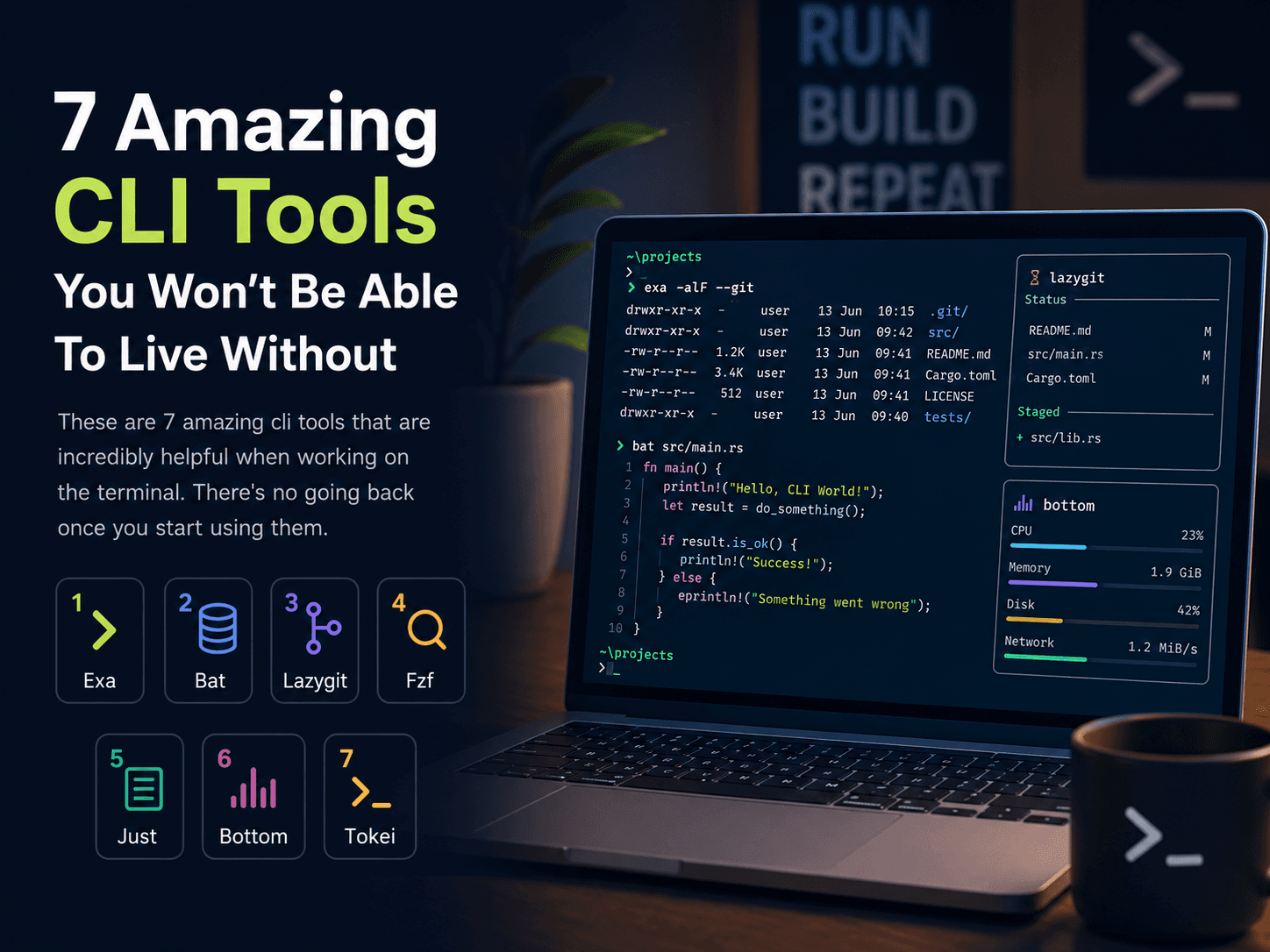
If you spend a significant amount of time in the terminal, you'll want to optimize your environment for maximum efficiency. Over the years, many fantastic command-line interface (CLI) utilities have been created that completely change how developers interact with the shell.
In this guide, we will set up seven essential CLI tools that will supercharge your terminal experience. We will be using macOS and the zsh shell, but these tools can be adapted for Linux as well.
Prerequisites
Before we dive in, make sure you have a terminal emulator (like Alacritty, iTerm2, or the default Terminal app) and Homebrew installed.
If you haven't installed Homebrew yet, you can do so by running the following command:
/bin/bash -c "$(curl -fsSL https://raw.githubusercontent.com/Homebrew/install/HEAD/install.sh)"For Apple Silicon users, remember to add Homebrew to your PATH:
echo 'eval "$(/opt/homebrew/bin/brew shellenv)"' >> ~/.zprofile
eval "$(/opt/homebrew/bin/brew shellenv)"
1. fzf (Command-Line Fuzzy Finder)
fzf is a general-purpose fuzzy finder that makes it incredibly fast to search for files, command history, and more.
Install it via Homebrew:
brew install fzfTo integrate fzf with your zsh shell, open your ~/.zshrc file using your preferred text editor (e.g., nano ~/.zshrc or code ~/.zshrc) and append the following line:
# Enable fzf keybindings and auto-completion
eval "$(fzf --zsh)"
Reload your configuration by running source ~/.zshrc.
You can now use CTRL+T to find files, CTRL+R to search your command history, or type cd ** and hit TAB to fuzzy-find a directory to jump into.
Enhancing fzf with fd
By default, fzf uses the standard find command. You can significantly improve its speed and make it respect .gitignore rules by using fd.
First, install fd:
brew install fdThen, add these configurations to your ~/.zshrc:
# Use fd instead of the default find command for fzf
export FZF_DEFAULT_COMMAND="fd --hidden --strip-cwd-prefix --exclude .git"
export FZF_CTRL_T_COMMAND="$FZF_DEFAULT_COMMAND"
export FZF_ALT_C_COMMAND="fd --type=d --hidden --strip-cwd-prefix --exclude .git"

_fzf_compgen_path() {
  fd --hidden --exclude .git . "$1"
}

_fzf_compgen_dir() {
  fd --type=d --hidden --exclude .git . "$1"
}
Git Integration with fzf-git
You can also search through Git commits, branches, and tags using fzf-git.sh.
Clone the repository into your home directory:
cd ~
git clone https://github.com/junegunn/fzf-git.sh.git
Then, source it in your ~/.zshrc:
source ~/fzf-git.sh/fzf-git.shNow you can use shortcuts like CTRL-GB to fuzzy-find branches or CTRL-GH for commit hashes!
2. bat (A Better cat)
bat is a fantastic alternative to the traditional cat command. It adds syntax highlighting, line numbers, and Git integration to your file previews.
Install bat:
brew install batNow, instead of running cat filename.txt, you can run:
bat filename.txtYou can view the available themes by running bat --list-themes. To set a default theme, add it to your ~/.zshrc:
export BAT_THEME="TwoDark"3. delta (Better Git Diffs)
delta is a syntax-highlighting pager for Git. It transforms your standard git diff output into a highly readable, side-by-side view.
Install it using Homebrew:
brew install git-deltaNext, open your ~/.gitconfig and add the following configuration:
[core]
    pager = delta

[interactive]
    diffFilter = delta --color-only

[delta]
    navigate = true
    side-by-side = true

[merge]
    conflictstyle = diff3

[diff]
    colorMoved = default
Your git diff and git show commands will now look vastly improved!
Creating Rich fzf Previews
With bat and eza installed (we will cover eza next), you can configure fzf to show rich file previews. Add this to your ~/.zshrc:
show_file_or_dir_preview="if [ -d {} ]; then eza --tree --color=always {} | head -200; else bat -n --color=always --line-range :500 {}; fi"

export FZF_CTRL_T_OPTS="--preview '$show_file_or_dir_preview'"
export FZF_ALT_C_OPTS="--preview 'eza --tree --color=always {} | head -200'"

_fzf_comprun() {
  local command=$1
  shift

  case "$command" in
    cd)           fzf --preview 'eza --tree --color=always {} | head -200' "$@" ;;
    export|unset) fzf --preview "eval 'echo \${}'"         "$@" ;;
    ssh)          fzf --preview 'dig {}'                   "$@" ;;
    *)            fzf --preview "$show_file_or_dir_preview" "$@" ;;
  esac
}
4. eza (A Better ls)
eza is a modern, maintained replacement for ls. It provides colorful output, file icons, and a more intuitive display of metadata.
Install it:
brew install ezaTo make it a seamless part of your workflow, alias ls to eza in your ~/.zshrc:
alias ls="eza --color=always --long --git --no-filesize --icons=always --no-time --no-user --no-permissions"5. tldr (Simplified Man Pages)
Traditional man pages can be overwhelming. tldr provides community-maintained, simplified help pages focused on practical examples.
Install the client:
brew install tlrcWhenever you need to quickly learn how a command works, just type tldr <command>:
tldr eza6. thefuck (Auto-Correct Commands)
We all mistype commands. thefuck is a brilliant app that corrects your previous console command.
Install it:
brew install thefuckAdd its initialization to your ~/.zshrc:
eval $(thefuck --alias)
# Optionally, add a shorter alias
eval $(thefuck --alias fk)
Now, if you type a command incorrectly (e.g., git brnch), you can simply type fuck (or fk), and it will suggest git branch and run it for you!
7. zoxide (A Smarter cd)
zoxide is a blazing fast replacement for the cd command. It learns which directories you visit most often, allowing you to jump to them with just a few keystrokes.
Install it via Homebrew:
brew install zoxideAdd this to the end of your ~/.zshrc:
eval "$(zoxide init zsh)"
alias cd="z"
After running source ~/.zshrc, you can navigate simply by typing z <partial-directory-name>.
And there you have it! These seven tools will significantly enhance your productivity and make working in the terminal a much more enjoyable experience. Enjoy your newly supercharged setup! 🚀